How to Use Grids in Sage Intacct Paperless
Sage Intacct Paperless uses flexible data grids to display information throughout the system. Most grids support search, filtering, sorting, column configuration, printing and export, enabling you quickly locate and manage records.
 |
Review the information in the table below for examples of how to interact with the various grid features.
| Use the search bar to enter keywords and narrow down grid information to help you find information quickly. Depending on which module you are using, search can help you locate users, documents, invoices, insurance policies, etc. If your search does not return any results, there is a No records to display message. | |
Filter | Use the Filter dropdown to narrow grid results based on your selected criteria. Filter options and results vary depending on which page or module you are using. | |
 | Click the button to print out the information shown in the grid. NoteThe printed grid reflects how the table information was updated (if at all) using search, filter and column reorganization. If you want to print all available grid information, be sure to clear the search bar and select from the Filter dropdown before selecting the option. | |
 | Click the button to export the information shown in the grid to Excel, CSV or PDF. NoteThe exported grid reflects how the table information was updated (if at all) using search, filter and column reorganization. If you want to export all available grid information, be sure to clear the search bar and select from the Filter dropdown before selecting the option. | |
 | Select the check box next to the item(s) in the grid you want to remove and click the button to remove it from the system. Certain types of information may not be able to be deleted, depending on your settings and permissions. | |
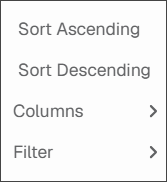
 | Certain grid columns give you the ability to reorder, sort or filter them so that the information you use most is easy to find. You can use the More Options
|