Job Notification Rules
Important
Only a user with Compliance Manager or Job-Level Access permissions can edit this page, but you must have Compliance Manager permissions to add/edit email templates in the Notification Rules Configuration section.
Notification rules in ClearToPay™ are automated communication mechanisms designed to provide adequate warning and support prompt action regarding a vendor's compliance status. They ensure that both external vendors and internal project teams are kept informed of missing or expiring documentation.
When notification rules are configured at the job level, the system sends automated email notifications to vendors when their compliance items—such as insurance certificates, contractor licenses or certified payroll—are missing, expired or approaching expiration. These rules can be configured to copy internal stakeholders, such as project managers or supervisors to keep them "in the loop" on issues. Additionally, every time an automated notification is sent, ClearToPay records it in Email History.
From My Paperless, click .
In the ClearToPay™ left navigation, click .
Choose the job from the list.
Click .
A page similar to the following displays:
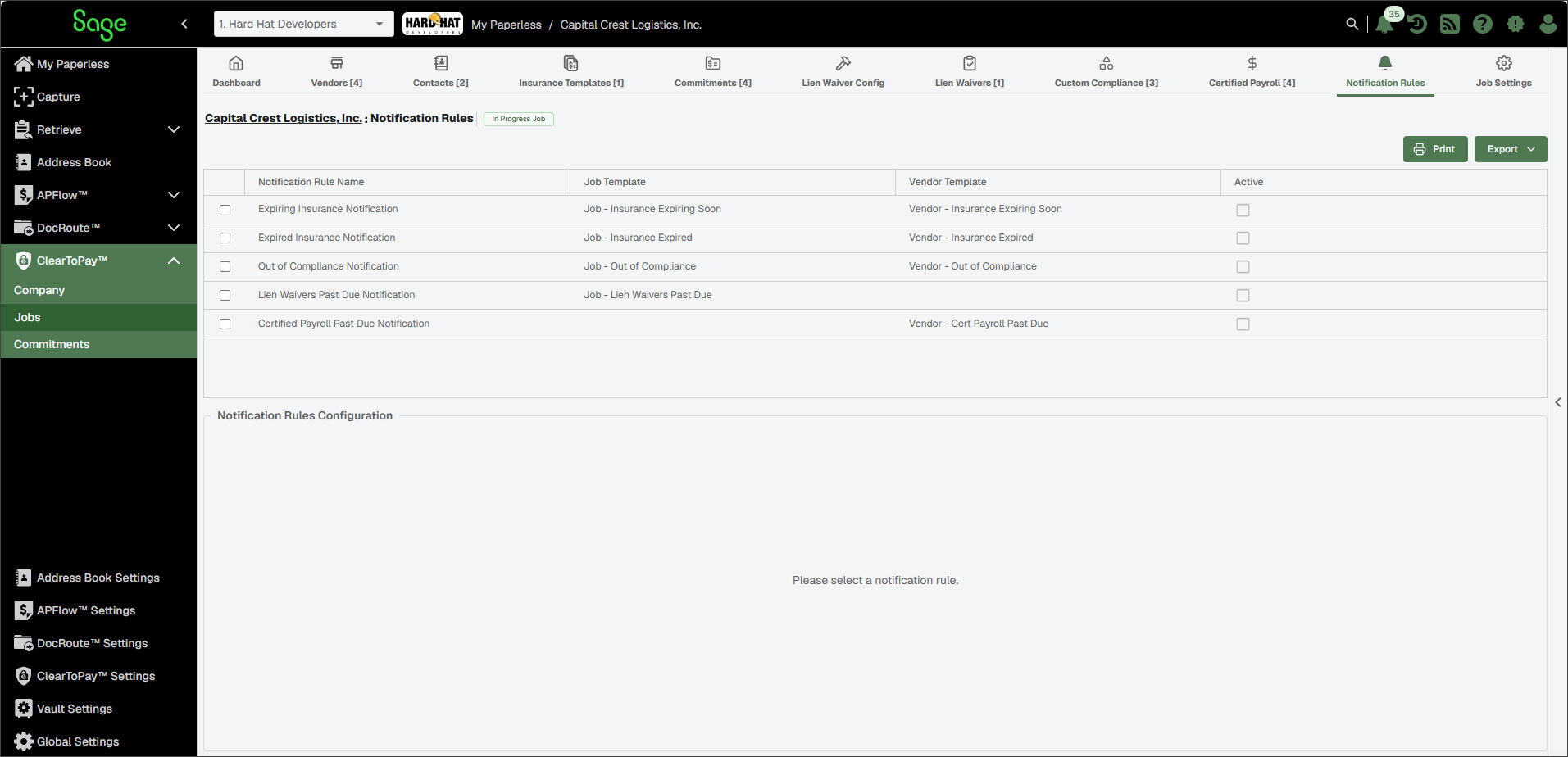
From the company Notification Rules page, you can perform the following tasks:

Click to print the Notifications Rules grid.

Click to export the grid information to Excel, CSV or PDF.
Click the check box for a specific notification rule to populate the Notification Rules Configuration section at the bottom of the page.
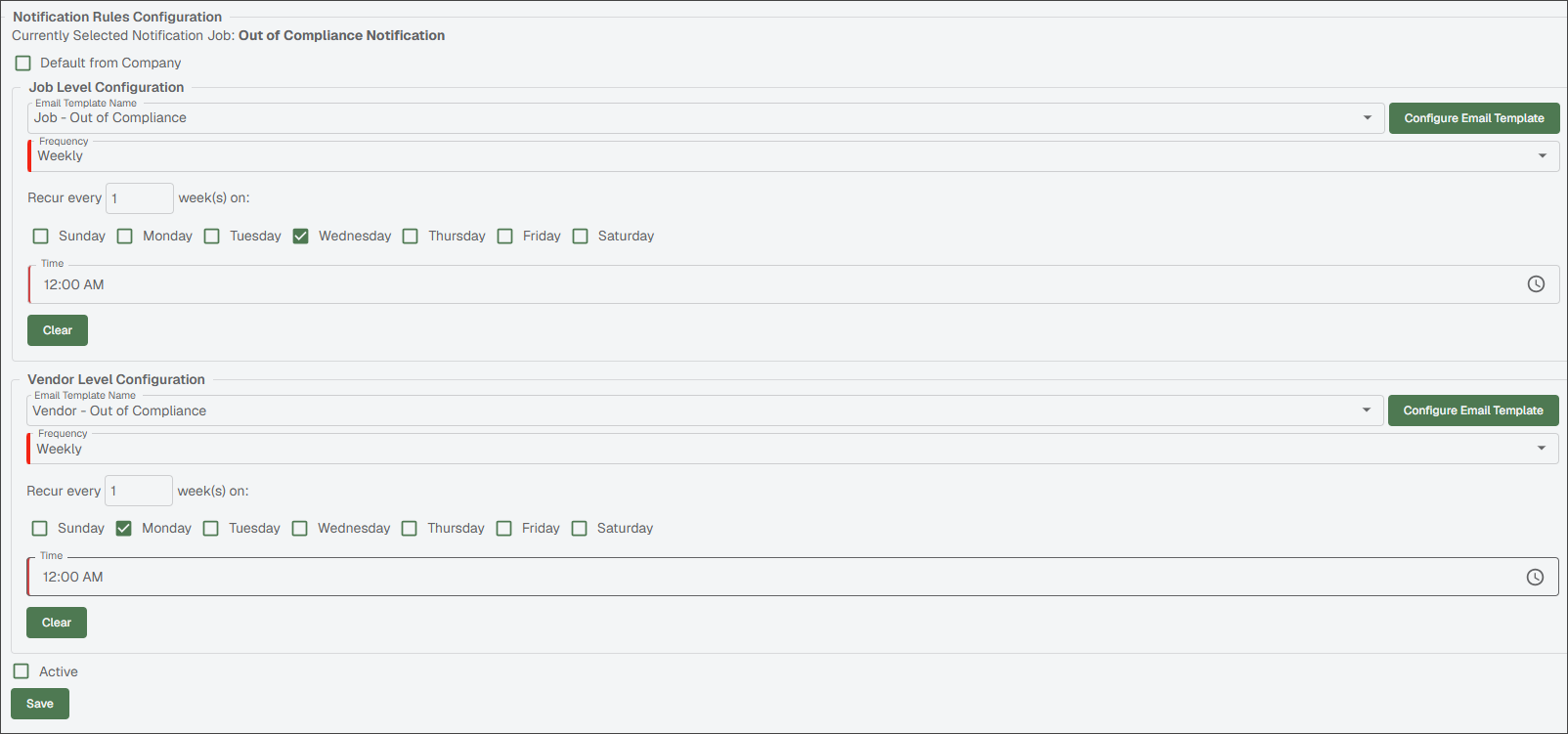
Select which templates you want to use for the job and vendor level:
Select the check box to use the default template and frequency if one is configured at the company level.
Important
If you choose to use the company defaults, the Job Level Configuration and Vendor Level Configuration options become read-only and cannot be edited.
Default Job Level Configuration: Choose the appropriate template for your selected Notification Rule from the Email Template Name dropdown and the timing from the Frequency dropdown.
If you have Compliance Manager permissions, you can click the button if you need to make updates to the template or add a new template if one does not exist in the system.
Default Vendor Level Configuration: Choose the appropriate template for your selected Notification Rule from the Email Template Name dropdown and the timing from the Frequency dropdown.
If you have Compliance Manager permissions, you can click the button if you need to make updates to the template or add a new template if one does not exist in the system.
Select the check box to make the notification rule(s) available.
Click .
Repeat step 6-9, above, to configure any additional notification rules.