Sage Intacct Accounting Integration
There are several tax integration options in Sage Intacct Paperless:
Line Level Simple Tax
Tax Solution
Avalara
You can implement Simple Tax by enabling subtotals on your purchasing transactions in Sage Intacct and designating one or more subtotal lines as Is Tax.

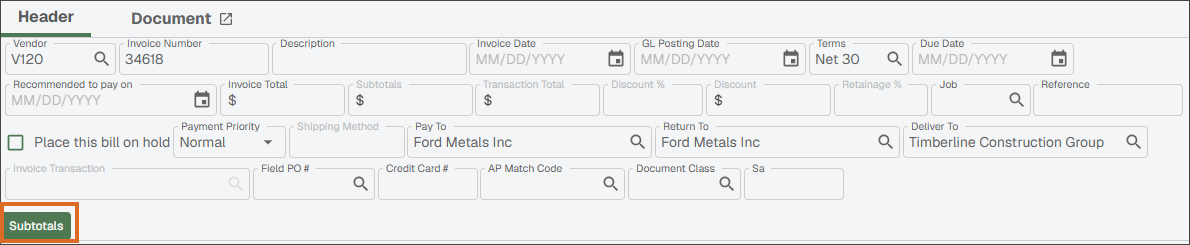
In Sage Intacct Paperless bridged to Sage Intacct, access the Subtotals section by clicking the button on the Invoice Entry header.
 |
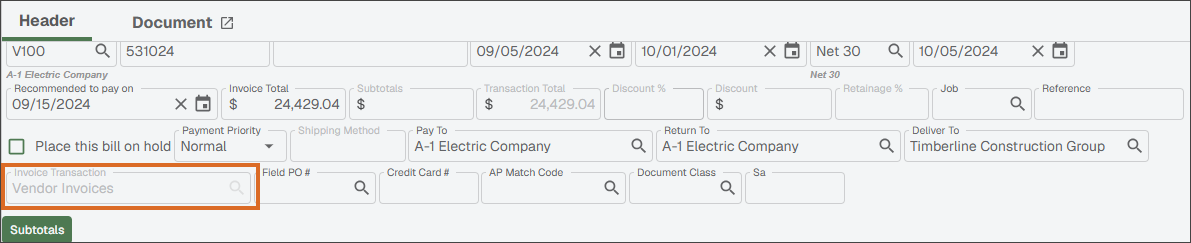
Available subtotal options are based on the subtotals configured on the invoice purchasing transaction. The invoice purchasing transaction for a given invoice is populated into the Invoice Transaction field on the invoice header.
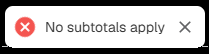
The ability to enter subtotals is only available after the Invoice Transaction field is populated in the invoice header. If the Subtotal button is clicked before populating the invoice transaction or if the entered invoice transaction does not contain subtotals, the following message displays:
 |
The Invoice Transaction field is systematically populated after you enter a Purchase Order, Subcontract or Invoice on a Debit Memo line. For non-commitment lines, if only a single invoice purchase transaction was configured in the page, the Invoice Transaction field is systematically populated. If more than one invoice purchase transaction was configured for the non-commitment line type, you must select which invoice purchasing transaction to use.
 |
Click to open a Subtotals dialog similar to the following:
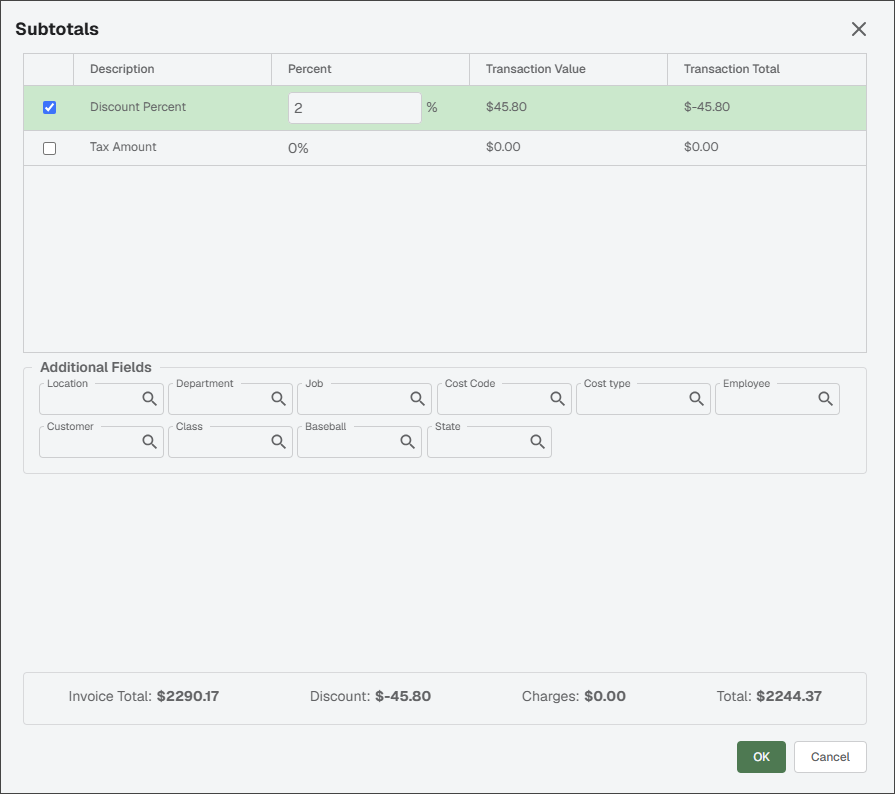 |
Depending on the subtotal configuration on the invoice purchasing transaction, you can edit either the percentage or the amount on a given subtotal line. As you select a subtotal line, the available dimensions fields should display, allowing you to code the subtotal line as needed. At least one line on the invoice must be marked as taxable to add an amount to the subtotal tax lines.
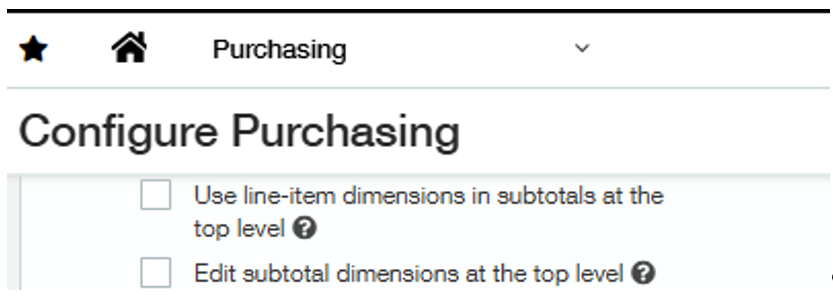
If you bridged to the Top Level and did not enable Edit subtotal dimensions at the top level in the purchasing configuration, dimension fields are available for coding on the subtotals form.
 |
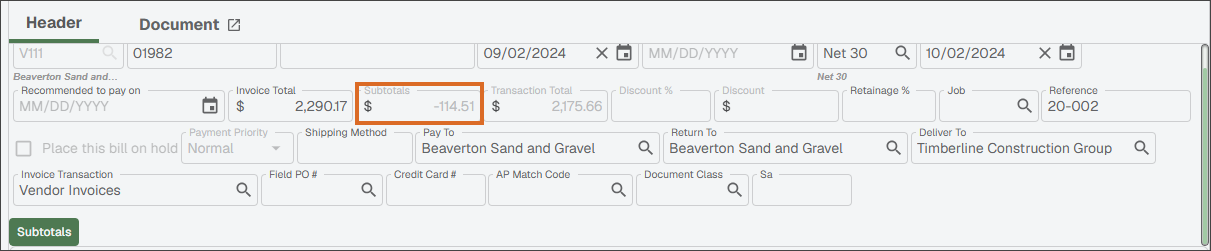
The Subtotals field in the invoice header displays the sum of all subtotal lines. The subtotals also update automatically as you change your invoice total, add or remove lines. There is no need to click like in Sage Intacct.
 |
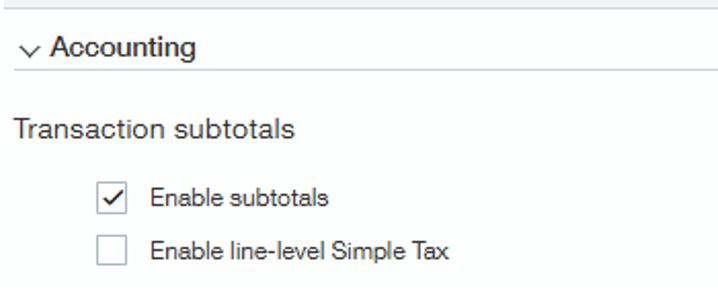
If you have configured subtotals on your order transaction definitions and populated the subtotal values at the time you enter your purchase order or subcontracts, the subtotal values from the commitment should systematically populate on your invoice transaction at the time you select the Purchase Order, Subcontract, or Invoice on a Debit Memo line. If you are only partially invoicing your commitment, you may need to manually adjust the subtotal values.
Support for Enable line-level Simple Tax has not been implemented; however, support for this setting is on our roadmap.
 |
Advanced Taxes is implemented by:
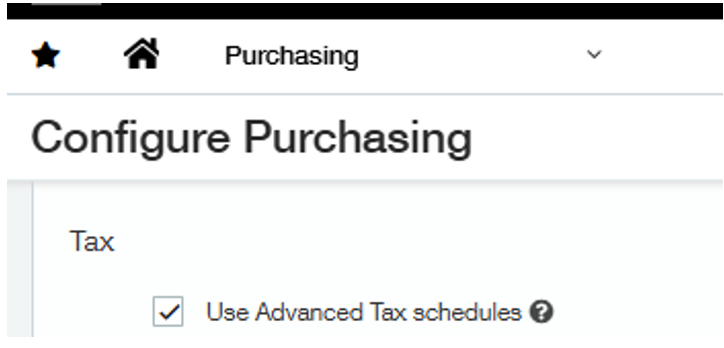
Turning on Use Advanced Tax schedules in Sage Intacct in the Purchasing Configuration
Setting up Subtotals on your invoice purchase transactions
 |
The subtotal line for taxes is designated as Is Tax and have a Value type of Percent.
 |
In Sage Intacct Paperless bridged to Sage Intacct, access the Subtotals section by clicking the button on the Invoice Entry header.
|
Available subtotal options are based on the subtotals configured on the invoice purchasing transaction. The invoice purchasing transaction for a given invoice is populated into the Invoice Transaction field on the invoice header.
The ability to enter subtotals is only available after the Invoice Transaction field is populated in the invoice header. If the Subtotal button is clicked before populating the invoice transaction or if the entered invoice transaction does not contain subtotals, the following message displays:
|
The Invoice Transaction field is systematically populated after you enter a Purchase Order, Subcontract or Invoice on a Debit Memo line. For non-commitment lines, if only a single invoice purchase transaction was configured in the page, the Invoice Transaction field is systematically populated. If more than one invoice purchase transaction was configured for the non-commitment line type, you must select which invoice purchasing transaction to use.
Taxes are based on a combination of the Contact Tax Group, Item Tax Group and Tax Schedule assigned to the lines. Taxes are calculated at the line level and systematically summed up on the tax subtotal line.
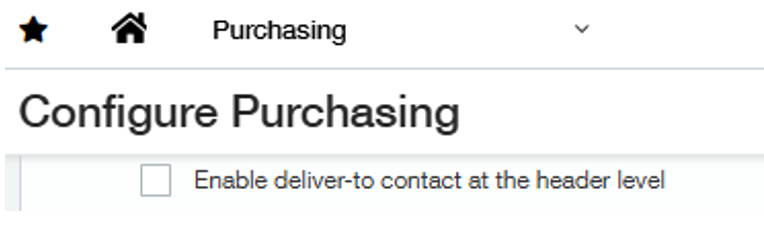
If the setting Enable deliver-to contact at the header level is enabled in the Purchasing Configuration in Intacct, the Contact Tax Group is determined from the Delivery To Contact. Otherwise, it is determined from the Return To Contact in the invoice header. The Contact Tax Group and if contact is taxable display in the invoice header as read-only fields.
 |
The Item Tax Group is determined from the Item on the line. The Item Tax Group and if the item is taxable display on the invoice line as read-only fields.
The Tax Schedule is populated based on your tax schedule map set up in Intacct. Both Contact and Item Tax Group must be taxable for taxes amount to calculate taxes.
 |
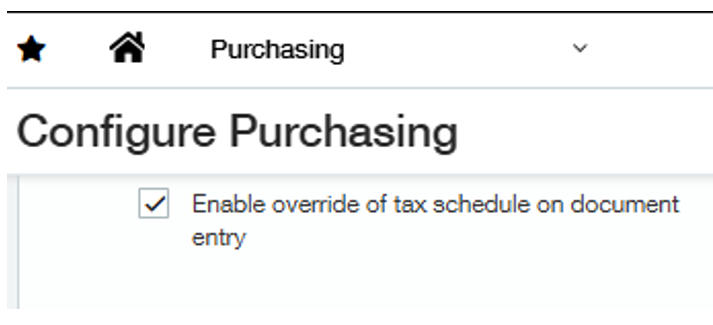
If Enable override of tax schedule on document entry option is enabled in the Purchasing Configuration in Intacct, the Tax Schedule field on the invoice line should be editable.
 |
If Line-item tax option is enabled on the invoice purchasing transaction, the taxable flag on the invoice line is editable.
Click to open a Subtotals dialog similar to the following:
|
Depending on the subtotal configuration on the invoice purchasing transaction, you can edit either the percentage or the amount on the non-tax subtotal lines. As you select a subtotal line the available dimensions fields display, allowing you to code the subtotal line as needed. At least one line on the invoice must be marked as taxable to add an amount to the subtotal tax lines.
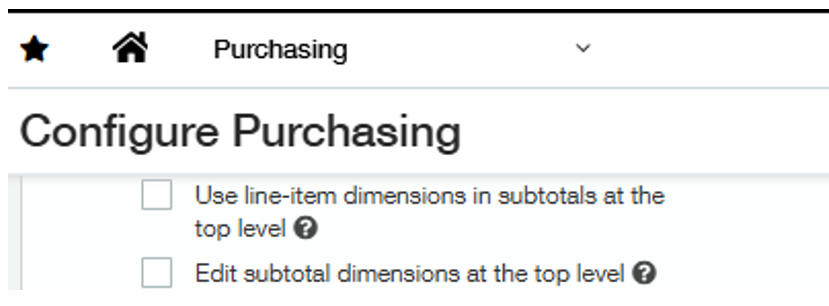
If you bridged to the Top Level and did not enable Edit subtotal dimensions at the top level in the purchasing configuration, dimension fields are available for coding on the subtotals form.
 |
The Subtotals field in the invoice header displays the sum of all subtotal lines. The subtotals also update automatically as you change your invoice total, add or remove lines. There is no need to click like in Sage Intacct.
|
If you have configured subtotals on your order transaction definitions and applied tax at the time you enter your purchase order or subcontracts, taxes are calculated on your invoice transaction at the time you select the Purchase Order, Subcontract or Invoice on a Debit Memo line.
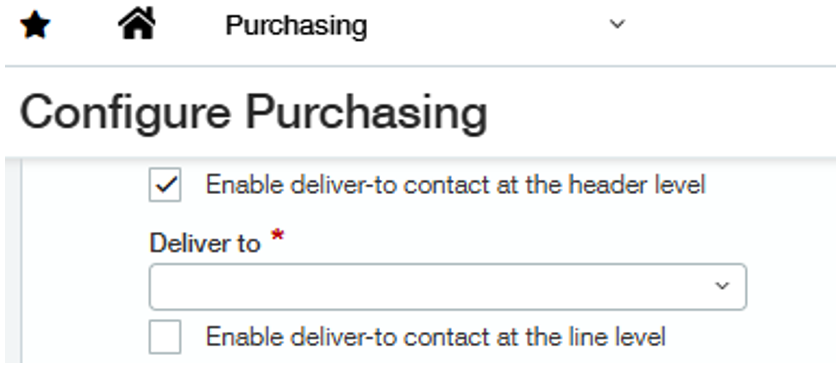
Support for Enable deliver to contact at the line level has not been implemented; however, support for this setting is on our roadmap.
 |
Reverse conversion in Sage Intacct Paperless systems bridged to Sage Intacct enables you to reduce or unwind previously applied downstream transactions, such as invoice or bills, without deleting history or starting over. Intacct only supports reverse conversion for non-inventory items.
Note
Reverse conversion reopens availability on the original commitment so that corrections can be handled cleanly, without voiding invoices, issuing credit chains or manually tracking overages.
Note
This functionality must be enabled in Intacct within Purchasing Settings by selecting the check box.
Select the check box to apply it to the selected line in Invoice Entry:
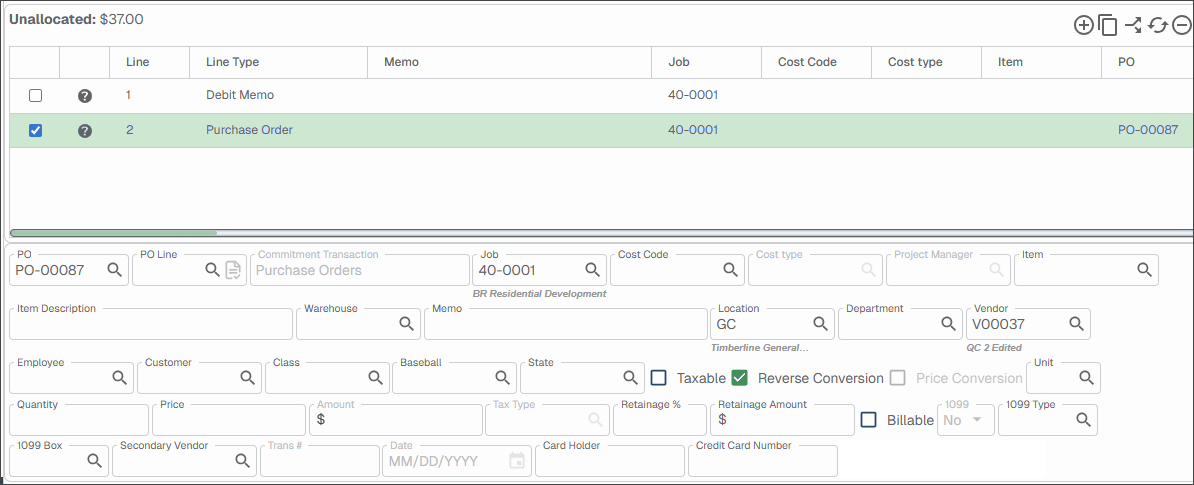
Reverse conversion requires the invoice line unit to be the opposite of the referenced PO link units (negative if the units were positive and vice versa).