Portal Dashboard Navigation
When you log in to the portal, the following My Paperless dashboard page displays:
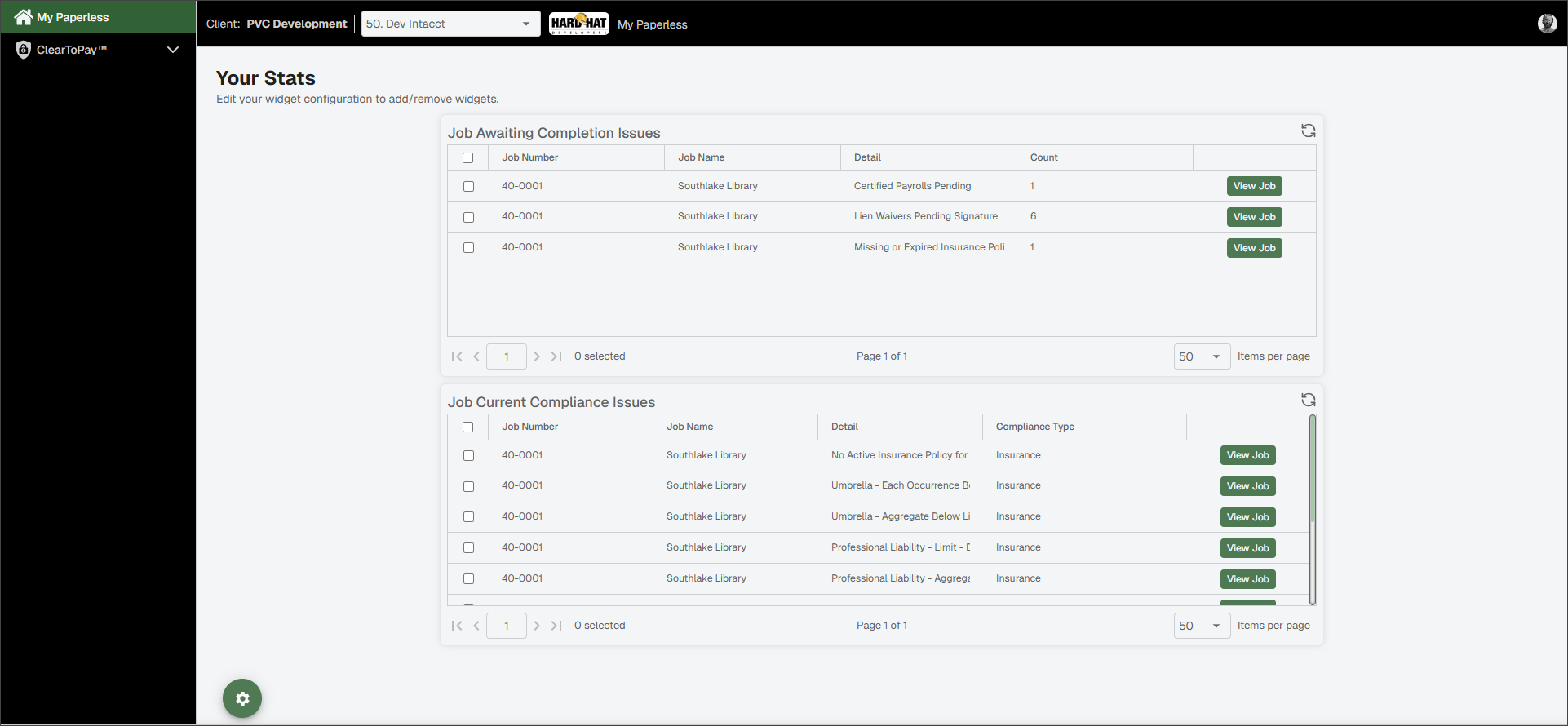
| Client Identifier | This is your current client, or company. If you are working on projects associated with multiple companies who have given you access to the portal, you can select different companies from a dropdown list. | |
| Vault Identifier | This is your current vault. In ClearToPay™, each job is tied to single vault. If your currently selected client has more than one vault, you may need to select a different vault from the dropdown list to find the job you are looking for. | |
| Vault Image | If you have set up a vault logo image, that image should display to the right of the vault label. Vault logos are optional. | |
| Breadcrumbs | As you navigate through Sage Intacct Paperless, the trail of breadcrumbs grows to let you know where you are, and what pages you accessed to get there. NoteYou can navigate back to previous pages by clicking within the breadcrumb trail. | |
| My Account | Use the My Account icon to access your profile and customize your User Settings. See Access and Update User Settings for more information. If you have uploaded a profile image, that image displays instead of the My Account icon. |